Stop Lost Sales: Fix Google Ads Offline Conversions for Marketers


Use enhanced conversions for leads, set up through the Google tag or Google Ads Data Manager, as your default method for tracking offline sales. Opt in inside your conversion action settings and turn on the Google tag or connect Data Manager now. If you’re still running a legacy offline conversion import, migrate to Data Manager before Google forces the move for you.
TL;DR:
- Using enhanced conversions for leads improves match rate accuracy, especially for multi-device and cookie-limited situations, by relying on hashed customer data.
- Properly capturing and persisting GCLID or hashed identifiers through every CRM stage is critical for accurate offline conversion tracking and should be tested thoroughly first.
- Switching to Data Manager or API-based uploads before support deadlines simplifies automation and ensures consistent data collection across sales pipelines.
- Regular, automated uploads within the accepted lookback windows and deduplication with unique order IDs enhance the reliability of conversion data.
- Operational issues like CRM field overwrites or inconsistent data normalization are common pitfalls that often cause offline tracking failures more than technical setup errors.
Table of Contents
- What are offline conversions in Google Ads, and why do they matter?
- How does offline conversion attribution actually work?
- What do you need in place before you start?
- Which setup route fits your systems: tag, Data Manager, or API?
- What’s the launch checklist for going live?
- What upload habits actually improve match rates?
- How do you troubleshoot offline conversion upload errors?
- How Tech Business Development approaches offline conversion projects
- What actually matters most in offline conversion tracking?
- Get offline conversion tracking working without the guesswork
- Sources
- FAQ
What are offline conversions in Google Ads, and why do they matter?
An offline conversion is any sale or qualified action that happens outside your website after someone clicks a Google ad. A shopper clicks a search ad, calls your showroom three days later, and buys a truck. A prospect fills out a form, gets nurtured by your sales team for six weeks, and eventually signs a contract. Both are offline conversions, and neither shows up in Google Ads unless you tell Google Ads about them.
That gap matters more than most advertisers realize. Smart Bidding runs on conversion signals. If your account only sees form fills and never learns which of those form fills turned into paying customers, Google’s bidding algorithms optimize toward the wrong outcome: lead volume instead of revenue. You end up paying to generate leads that never close, while campaigns that produce fewer but better leads get starved of budget.
Common offline conversion examples include:
- Phone sales closed after a call from a tracked number
- In-person purchases at a dealership, clinic, or retail counter
- CRM deals marked “closed won” weeks or months after the original lead
- Quote requests that convert into signed contracts through a sales team
Google Ads matches these offline events back to the original ad click using one of two methods. The first is deterministic GCLID matching: the Google Click Identifier gets appended to your landing page URL, and if you capture and store it, you can upload it later alongside the conversion event for an exact match. The second is hashed first-party data matching, the backbone of enhanced conversions for leads, where email addresses, phone numbers, or mailing addresses get cryptographically hashed and matched against Google’s own signed-in user data.
The hashed approach exists because GCLIDs get lost. A lead comes in through a bad browser, a mobile app, or a CRM field that doesn’t get populated. Enhanced conversions for leads catches those cases, and it’s also more durable across devices, since it doesn’t depend on a cookie or click ID surviving a multi-week sales cycle. Google recommends sending both when you can. GCLID gives you certainty; hashed identifiers give you coverage.
How does offline conversion attribution actually work?
Every offline conversion upload follows the same basic path: a person clicks your ad, lands on your site, and takes an action your CRM records. Somewhere in that chain, you need to capture enough information to reconnect the CRM event back to the original click.
The flow looks like this in practice:
- A user clicks your ad and the GCLID parameter attaches to the landing page URL.
- Your Google tag or Google Tag Manager container captures that GCLID and stores it, usually in a hidden form field or a first-party cookie.
- The form submission pushes the GCLID into your CRM alongside the lead record.
- Your sales team works the lead. When it closes (or drops off), that outcome gets logged in the CRM.
- An automation or manual export pulls the closed-deal data, formats it to Google’s specifications, and uploads it as a conversion event.
Google’s developer documentation lists the fields that matter most for a clean upload. Some are required, some sharply improve match rate:
- GCLID — the click identifier, required for standard offline imports
- Conversion action name — which conversion action in your account this event belongs to
- Conversion time — the exact date and time the offline action occurred, not when you’re uploading it
- Conversion value — the deal amount, if you’re bidding toward revenue
- Order ID — a unique identifier for deduplication
- Hashed email, phone number, or address — the identifiers enhanced conversions for leads relies on
- Session attributes (sometimes called BRAID) — additional context Google uses to strengthen matching
Formatting rules aren’t optional. Every identifier that gets hashed must use SHA-256, and phone numbers must be normalized to E.164 format before hashing, meaning a plus sign, the country code, and no spaces, dashes, or parentheses. Upload “(555) 123-4567” instead of “+15551234567” and Google’s hashing won’t match it against anything, even though the number is objectively correct.
Match rate reality check: a single malformed phone field or an email hashed with mixed casing can silently tank your match rate across an entire upload batch, because hashing is exact. There’s no fuzzy matching once a value is hashed. Get the format right before you hash it, not after.
Google’s own API guidance recommends sending both GCLID and hashed identifiers in the same ClickConversion object whenever your data supports it. That hybrid approach gives you deterministic attribution where GCLID survived the journey, and probabilistic backup where it didn’t.
What do you need in place before you start?
Before touching any setup screen, confirm four things in your account. Skipping any one of these turns an afternoon project into a week of troubleshooting.
- Auto-tagging is enabled. Without it, Google Ads never appends a GCLID to your destination URLs, and there’s nothing to capture in the first place. Check this under account settings before anything else.
- You have an offline or importable conversion action created. This needs to be a conversion action configured for click-based imports (an
UPLOAD_CLICKStype) or a dual-mode action if you’re layering enhanced conversions on top of an existing form-fill action. - You’ve opted in to enhanced conversions for leads and accepted Google’s customer data terms. This is a checkbox many advertisers skip because it’s buried in the conversion action’s settings, not on a dashboard.
- You’ve identified your match key in the CRM. Decide whether GCLID, email, or phone number is the primary field your sales team’s system will use to reconnect a closed deal to the original ad click, and confirm that field actually gets populated and doesn’t get overwritten at any stage.
That last point trips up more accounts than the technical setup does. A CRM field that captures a GCLID at lead creation but gets cleared when the record converts to an “opportunity” or “deal” object is a silent tracking killer. The data was there. It just didn’t survive the handoff between sales stages.
Pro Tip: Test your match key persistence before you build any automation. Create a dummy lead, click through your own ad, fill out the form, then manually walk that record through every stage your CRM has. If the GCLID or email field is blank by the time it hits “closed won,” fix that first. Automating a broken process just breaks it faster.
Enhanced conversions for leads and legacy offline conversion imports use different opt-in switches inside Google Ads, and Google is actively consolidating them under Data Manager. If you set up offline imports more than a year ago, it’s worth re-checking which mode your account is actually running.
Which setup route fits your systems: tag, Data Manager, or API?
You have four realistic paths into Google Ads, and the right one depends almost entirely on how your CRM already talks to the outside world.
Google tag or Google Tag Manager (recommended for most advertisers)
This is the lowest-friction option for businesses whose lead capture happens through a web form. The Google tag, deployed directly or through GTM, can automatically detect form submissions and collect the associated email or phone number for hashing, no code required in many cases like on Shopify.
- Automatic collection works well when your forms use standard input names for email and phone fields. Google’s tag scans the page and grabs the values without you mapping anything manually.
- Manual selectors are the fallback when your form is built on a custom framework and automatic detection misses fields. You point the tag configuration at specific CSS selectors.
- Code-based configuration gives you full control, and it’s the right call when your form data doesn’t live in the DOM at submission time (for example, if it’s assembled dynamically via JavaScript before posting). You pass the values directly into the
enhanced_conversion_dataobject.
Choose code configuration specifically when your CRM’s own JavaScript, not a native HTML form, is what actually submits the lead. Automatic and selector-based collection both assume a traditional form element exists on the page.
Google Ads Data Manager
Data Manager is Google’s answer to the fragmented mess of offline import methods that existed for years. It centralizes connectors, so instead of building a custom script to push CRM exports into Ads, you configure a connection once inside Data Manager and let it manage the recurring transfer.
Google explicitly recommends Data Manager as the upgrade path for advertisers still running legacy offline conversion imports, and starting June 15, 2026, offline conversion imports and enhanced conversions for leads uploads migrate onto the Data Manager API entirely. If your business relies on a spreadsheet export today, this is worth setting up before that migration date rather than after, when support resources will be stretched across every advertiser making the same move at once.
Data Manager also governs the lookback window logic for you. Rather than manually tracking how far back an upload can reach, the interface flags rows that fall outside the accepted window before you submit them.
Google Ads API (for developer teams)
If your business runs its own engineering team and needs conversion uploads triggered directly from internal systems, the API route gives you the most control. The core object is ClickConversion, submitted through the UploadClickConversions method, populated with:
gclidconversion_actionconversion_date_timeconversion_valueuser_identifiers(hashed email, phone, or address)order_id
This is the right choice when conversions need to fire in near real time from an internal system, or when your CRM’s native connectors don’t support Google Ads and you’d rather write fifty lines of code than maintain a manual export process.
Third-party connectors and CRMs
Platforms like Zapier and HubSpot offer native or semi-native connections that push closed-deal data toward Google Ads without custom development. These work well for straightforward two-step handoffs, lead comes in, deal closes, event fires, but they tend to struggle with multi-stage sales pipelines where a GCLID needs to survive four or five status changes before the conversion actually counts. Test any connector against your specific pipeline stages before trusting it for reporting you’ll act on. Guidance on connecting a CRM to Google Ads covers the identifier-persistence problem in more depth if your pipeline has several stages.
What’s the launch checklist for going live?
Work through this in order. Each step depends on the one before it.
- Create or confirm your conversion action, opt in to enhanced conversions for leads, and decide your primary match key (GCLID, email, or phone).
- Install and configure the Google tag or GTM container, then verify it’s actually capturing GCLID on a real form submission, not just in a test environment.
- Update your CRM so the GCLID (and hashed identifiers, if used) persist from the lead record through every subsequent pipeline stage, including the opportunity or deal object.
- Set up Data Manager or an API integration, run one test batch of five to ten records, and check the upload result file for rejected rows before scheduling automated runs.
- Let the new conversion action run for three full conversion cycles or four weeks, whichever is longer, then switch it to your primary conversion action once the numbers hold steady.
Pro Tip: Don’t switch bidding over to the new conversion action the same week you launch it. Smart Bidding needs a stable data pattern to optimize against, and a partial first week of uploads (while you’re still debugging format issues) can send your algorithm chasing noise for weeks after you’ve actually fixed the problem.
What upload habits actually improve match rates?
Consistency beats perfection here. An account that uploads a modest batch every single day almost always outperforms one that uploads a large batch once a month, because Smart Bidding needs a steady signal to calibrate against, not an occasional data dump.
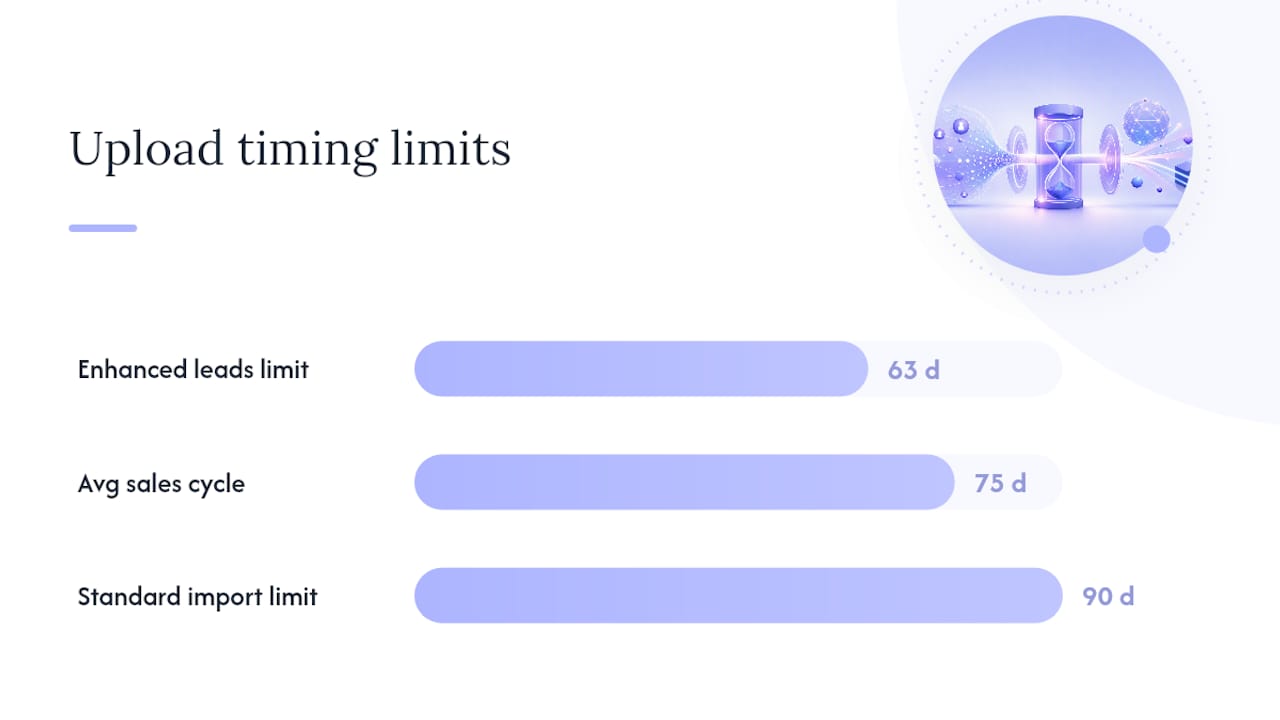
Google’s own guidelines are specific about timing. Uploads that fall outside the accepted lookback window get rejected outright: generally 90 days for many standard offline data sources, and 63 days for enhanced conversions for leads user-provided-data uploads specifically. If your sales cycle regularly runs longer than that window, you need to upload provisional conversion events earlier and update them, not wait for the final close.
A few habits separate accounts with clean data from accounts fighting constant discrepancies:
- Upload on a fixed schedule. Daily is ideal; anything less frequent than weekly starts degrading Smart Bidding’s ability to react.
- Use order ID for deduplication. Without a unique identifier per conversion, the same closed deal can get counted twice if it’s included in overlapping upload batches.
- Set conversion counting to “every” only when it’s genuinely appropriate, such as recurring purchases, and “one” for single-close events like a signed contract.
- Send multiple hashed identifiers per record when you have them. Email plus phone gives a meaningfully better match rate than email alone, because Google can match against whichever identifier its systems recognize.
- Capture and log consent for the customer data you’re hashing and uploading, in line with the terms you accepted when opting in to enhanced conversions for leads.
Data callout: enhanced conversions for leads uploads reject anything older than 63 days, while many standard GCLID-based imports allow up to 90 days. A sales cycle that averages 75 days needs a provisional upload strategy, not a wait-and-see one.
How do you troubleshoot offline conversion upload errors?
Give it time before you panic. Uploaded conversions typically appear in Google Ads reporting about three hours after processing, not instantly. Check the “All conv. (by conv. time)” column specifically, since it reflects when the offline action actually happened rather than when you uploaded it, and that’s the number you want when validating a batch against your CRM records.
When something does go wrong, it’s usually one of these:
- CLICK_NOT_FOUND — the GCLID in your upload doesn’t match any recorded click, often because it was captured incorrectly or the click happened outside your conversion action’s lookback window.
- INVALID_CONVERSION_ACTION_TYPE — you’re uploading to a conversion action that isn’t configured to accept click-based imports.
- Conversion date and time mismatches — usually a timezone problem, where your CRM exports in local time but Google Ads expects the format tied to your account’s set timezone.
- Duplicate conversions — happens when the same closed deal appears in two upload batches without a consistent order ID to flag it as one event.
Google Ads surfaces most of this directly. The enhanced conversions diagnostics report and the upload result files (returned after every Data Manager or API upload) flag exactly which rows were rejected and why, row by row. Read those files before assuming your entire pipeline is broken. Often it’s three malformed phone numbers out of four thousand records, not a systemic failure.
The most common root causes, once you dig past the error code, are operational rather than technical: a GCLID field that gets wiped during a CRM stage change, a hashing script that normalizes phone numbers inconsistently, or a server running in a different timezone than the one your Google Ads account expects.
How Tech Business Development approaches offline conversion projects
Most broken offline tracking setups fail for the same reason: sales and marketing systems weren’t built to talk to each other. Tech Business Development treats that alignment as the actual project, not a footnote to the technical build. The recurring fix across CRM-linked sales cycles is persisting the click ID through every pipeline stage, lead, opportunity, and closed deal, since a single dropped field between stages is enough to kill an entire month’s worth of match data.
The process typically starts by auditing where identifiers currently get lost, then rebuilding the CRM automation so a GCLID or hashed identifier survives the full journey without manual re-entry. Guidance on connecting Google Ads conversion tracking to CRM records walks through the mapping decisions that matter most for consulting and service businesses specifically.
What actually matters most in offline conversion tracking?
The technical setup gets most of the attention in guides like this one, and it deserves that attention, but it’s rarely what breaks an offline tracking project. The recurring failure point is operational: a sales team that doesn’t know a hidden field exists, a CRM workflow that overwrites data during a stage change, a “temporary” spreadsheet export that never got automated.
Conventional advice treats offline conversion setup as a one-time technical task: configure the tag, upload a file, done. That framing undersells how many sales cycles run six, eight, or twelve weeks, during which a single unmapped field or a sales rep skipping a form step quietly breaks the whole chain. The account looks correctly configured. The data just never had a chance to survive.
If you’re prioritizing anything first, prioritize identifier persistence through the CRM pipeline, before you touch bidding strategy or upload frequency. A perfectly configured Google tag feeding a CRM that drops the GCLID at stage two produces the same result as no tracking at all: clean-looking dashboards built on incomplete data. Fix the pipeline first. Everything downstream, match rates, Smart Bidding performance, reporting accuracy, depends on that one decision more than any other in this guide.
— Shayan Shirvani
Get offline conversion tracking working without the guesswork
Tech Business Development builds the exact pipeline this guide describes, tag or Data Manager setup, CRM field mapping, and the identifier persistence work that keeps GCLIDs alive through multi-stage sales cycles, so you’re not troubleshooting rejected upload rows six weeks after launch.

Instead of piecing together a Google tag configuration, a Data Manager connection, and a CRM automation separately, and hoping they still agree with each other three months later, one team handles the tag or GTM setup, the CRM mappings, and the upload automation as a single build. Clients typically see fewer missed conversions and better match rates within the first upload cycles, which gives Smart Bidding a cleaner signal to optimize against instead of guessing based on lead volume alone. Services covering this exact work, Google Ads tagging, CRM integration, and analytics setup, are outlined alongside the Startup, Growth, and Scale packages, starting from $499 per month. Request a quote and get your offline tracking audited before your next upload batch.
FAQ
What are offline conversions in Google Ads?
Offline conversions are sales or qualified actions that happen away from your website after someone clicks your ad, such as a phone sale, an in-person purchase, or a CRM deal marked “closed won.” You import them into Google Ads so Smart Bidding can optimize toward real revenue instead of just leads or clicks.
How do you set up offline conversion tracking in Google Ads?
Enable auto-tagging, create a conversion action configured for click-based imports, and opt in to enhanced conversions for leads under that action’s settings. From there, capture GCLID through the Google tag or GTM, persist it in your CRM, and upload closed-deal data through Data Manager, the API, or a supported connector.
What’s the difference between enhanced conversions for leads and legacy offline conversion imports?
Legacy offline imports rely solely on matching GCLID to a recorded click, which fails whenever that identifier gets lost. Enhanced conversions for leads adds hashed email, phone, or address data as a backup matching method, and Google is migrating both onto the Data Manager API starting June 15, 2026.
Is $20 a day good for Google Ads?
A low daily budget can work for a narrow, low-competition local campaign, but it’s rarely enough for competitive keywords or a full offline conversion feedback loop, since Smart Bidding needs consistent conversion volume to optimize well. Businesses running CRM-driven sales cycles typically need a higher, sustained budget for bidding algorithms to have enough signal to work with, which is something worth assessing account by account through a services consultation.
How long does it take for imported offline conversions to show up?
Uploaded conversions generally appear in Google Ads reporting about three hours after processing. Check the “All conv. (by conv. time)” column, since it reflects the actual offline conversion date rather than the upload date.