Test First Setup: Connect HubSpot & Zoho to Google Ads


You can connect your CRM to Google Ads through a native Data Manager connector, middleware like Zapier, or a custom API/ETL pipeline. Pick the native connector for speed and simple audience syncing, middleware when you need automation without a developer, and API/ETL when you need keyword-level attribution or handle serious volume. Before anything else, enable auto-tagging in Google Ads and send yourself a test lead to confirm your GCLID is actually landing in the CRM. HubSpot and Zoho both connect directly through Google Ads Data Manager.
TL;DR:
- Native connectors are ideal for quick setup and basic audience and offline conversion syncing but lack keyword-level revenue attribution capabilities.
- Middleware like Zapier offers automation without coding but can incur polling limits and additional costs that scale with lead volume.
- API and ETL pipelines are necessary for detailed revenue attribution and large-scale data handling, requiring developer support upfront.
- GCLID capture is often unreliable due to redirects, URL shorteners, and cookie restrictions, making enhanced conversions a more resilient alternative.
- Regularly review and update conversion stage mappings and permissions to prevent disruptions and ensure accurate CRM to Google Ads data flow.
Table of Contents
- Which CRM integration method should you use?
- How do I connect HubSpot or Zoho to Google Ads?
- How do you capture and use GCLID for offline conversions?
- Which CRM stage should trigger a Google Ads conversion?
- Why isn’t my CRM data showing up in Google Ads?
- When does this need a developer instead of a marketer?
- Manager accounts, API access, and the permissions checklist
- What data privacy rules apply when syncing CRM data to Google Ads?
- How do you measure campaign performance using CRM data?
- Can you automate bidding and targeting from CRM data?
- What are real-world examples of CRM to Google Ads integration?
- What security steps protect the CRM to Google Ads connection?
- What the checklists miss
- Get your CRM and Google Ads connected without the trial and error
- Where to check the official documentation
- Sources
- FAQ
Which CRM integration method should you use?
The right method depends on how much control you need over the data versus how fast you want it running. Here’s how the four common approaches actually compare once you get past the marketing copy.
Native connectors through Google Ads Data Manager are the fastest path for HubSpot and Zoho users. You authorize the connection, map a handful of fields, and Google handles the rest. The trade-off is granularity: native connectors are built for audience syncing and basic offline conversion import, not for pulling keyword-level revenue data into a warehouse. For a small team running a handful of campaigns, this is usually the right call.
Middleware and iPaaS tools, Zapier being the most common for small businesses, sit in between. They’re low-code, they deploy in an afternoon, and Google has published detailed steps for importing offline conversions through Zapier. The catch is polling limits and subscription costs that scale with your lead volume, plus an extra system to maintain if Zapier changes its pricing tiers or workflow logic.
API/ETL pipelines are the heavy-duty option. If you need to attribute revenue back to specific keywords, or you’re pushing CRM data into BigQuery or Snowflake for real reporting, this is the only path that gets you there. It requires developer time up front, but it’s the only method that doesn’t hit a data ceiling as you scale.
Manual CSV uploads still have a place, mostly for pilots. If you’re testing whether offline conversion data actually improves your Google Ads bidding before committing budget to a real integration, exporting a CSV of closed deals and uploading it manually is a legitimate first step. It’s not sustainable past a few dozen leads a month, but it proves the concept before you build anything.
- Native connector: fastest setup, best for audience sync and basic conversions
- Middleware (Zapier): low-code automation, watch for polling limits and cost
- API/ETL: required for keyword-level attribution and data warehouses
- Manual CSV: fine for a pilot, not a long-term system
How do I connect HubSpot or Zoho to Google Ads?
Follow this order and you’ll avoid the most common setup mistakes, which almost always come from skipping the verification step at the end.
- Prep your accounts first. You need Google Ads admin access with auto-tagging turned on, plus a CRM user account with API permissions enabled. In HubSpot, note that Google requires an individual Google Ads account connection — manager accounts (MCCs) aren’t supported for this connection.
- Decide your use case before you touch any settings. Are you syncing audiences for Customer Match, importing offline conversions from closed deals, or setting up enhanced conversions for leads? Each has slightly different field requirements.
- Open Google Ads Data Manager and click “+ Connect product.” Choose HubSpot or Zoho from the list of supported CRMs, authorize the connection with your CRM login, then map the fields Google Ads needs: email, phone, GCLID, and lifecycle stage.
- Create conversion actions in Google Ads that mirror your CRM’s lifecycle stages. If your CRM tracks “Marketing Qualified Lead,” “Sales Qualified Lead,” and “Closed Won,” build matching conversion actions with names you’ll actually recognize later, not generic labels like “Conversion 1.”
- Run a test lead through your actual form. Submit it, wait a few minutes, then check the CRM record for a populated GCLID field. Once that’s confirmed, run one manual offline conversion import to prove the full loop works end to end before you turn on automated syncing.
Pro Tip: Name your conversion actions to match your CRM stage names exactly (not “Lead” and “MQL” in two different systems) — six months from now, whoever audits this integration will thank you.
Zoho’s setup follows the same basic shape, though its field mapping screen groups contact and deal data slightly differently than HubSpot’s. Salesforce users should note that legacy Salesforce integration support ended May 31, 2025, so any older Salesforce connection needs to be rebuilt through Data Manager, with API access and field history tracking enabled on Lead and Opportunity objects.
How do you capture and use GCLID for offline conversions?
GCLID capture is the single point of failure in most CRM to Google Ads setups, and it’s also the easiest thing to get wrong without noticing for weeks. The standard pattern: read the gclid parameter from the landing page URL, write it to a first-party cookie, populate a hidden field in your form, and map that hidden field to a custom GCLID field in your CRM.
That sounds simple until you hit real-world traffic. A few things routinely break it:
- Single-page applications that don’t reload the URL on navigation, so the GCLID parameter never gets re-read on later pages of a multi-step form.
- Redirects and link shorteners in your ad’s final URL, which strip query parameters before the visitor ever reaches your landing page.
- Browser cookie restrictions that limit how long a first-party cookie survives, especially if the visitor takes days to convert.
HubSpot’s own guidance backs this up directly: both HubSpot and Google recommend avoiding shortened or redirecting URLs in your tracking template, because that’s one of the most common reasons GCLID never makes it into the CRM.
Missing even a small share of GCLIDs is enough to break offline attribution accuracy, since Google can’t tie those conversions back to the ad click that generated them. When your funnel involves long journeys, multiple redirects, or a checkout flow you don’t fully control, enhanced conversions for leads are often the more resilient option. Instead of relying on a click ID, you hash the lead’s email or phone number at submission and upload that instead. Match rate depends heavily on data quality, so an outdated or misformatted phone field can quietly undercut results.
To verify either method is working, submit a real test lead and check the CRM record for a timestamped GCLID or a hashed contact field. If it’s not there within a few minutes, something upstream is stripping it before it ever gets saved.
Which CRM stage should trigger a Google Ads conversion?
Most B2B advertisers get more value optimizing toward “Qualified Lead” as their primary Google Ads conversion signal, and saving “Closed Won” as a slower validation check further down the funnel. Waiting for closed deals alone often starves the algorithm of enough signal volume to optimize bidding, especially with sales cycles longer than a few weeks. An earlier, higher-volume signal like a qualified lead gives Google Ads’ automated bidding something to work with quickly, while closed-won data confirms weeks later whether those “qualified” leads were actually worth the spend.
Setting this up means creating named conversion actions in Google Ads that match your CRM’s stage names exactly. If your CRM calls it “SQL,” don’t label the Google Ads conversion action “Sales Qualified” or “Stage 3.” Consistency here saves confusion during every audit that follows.
- Send conversion values from the CRM when deal size varies meaningfully between leads, since Google Ads’ value-based bidding strategies use that number to prioritize similar prospects.
- Skip conversion values if most leads are roughly the same size. A flat count is simpler and just as effective.
- Re-check your conversion mapping every quarter as your CRM’s pipeline stages evolve.
- Monitor cost per qualified lead and lead-to-close rate by campaign, not just cost per conversion.
Give the integration two to three weeks of data before judging results. Google Ads’ bidding algorithms need volume to calibrate, and a week of test data will look noisy no matter how well the pipeline is built.
Why isn’t my CRM data showing up in Google Ads?
Most CRM to Google Ads problems trace back to one of four causes, and they’re worth checking in order rather than guessing.
- Confirm auto-tagging is actually on, then run a fresh test lead. If the GCLID field in your CRM stays empty, the problem is almost always upstream in your tracking template or a redirect stripping the parameter before it reaches your form.
- Check CRM API access and field-level write permissions. The integration user needs a role that can write to custom fields, not just read contact records. This is a common blocker after a CRM admin change or a permissions cleanup.
- Look at the Data Manager or middleware activity logs. Imports can silently pause when they hit a quota. HubSpot’s direct connector, for instance, may pause data imports if it hits its usage limits, which looks identical to a broken connection unless you check the logs.
- If GCLID capture keeps failing despite fixing tracking templates and removing shorteners, switch your primary signal to enhanced conversions using hashed contact data instead of chasing a click ID that your funnel structurally can’t preserve.
Pro Tip: Set a recurring calendar reminder to check your import logs monthly. Quota pauses rarely trigger an alert; they just quietly stop syncing until someone notices conversions have flatlined.
When does this need a developer instead of a marketer?
Some of this work is genuinely marketing work: naming conversion actions to match CRM stages, deciding which lifecycle event to optimize toward, building audience segments. Other parts require developer time, full stop. GCLID capture logic, API/ETL pipeline builds, and troubleshooting a single-page app that drops tracking parameters are not tasks to hand to whoever manages your CRM part time.
There are service providers who handle both sides of that line: fast Google Ads and Google Ads Data Manager setups, CRM integration builds for HubSpot and Zoho, and the automation and dashboarding work that turns a working connection into something your team actually monitors.
A typical engagement runs as a pilot first (get one lead source flowing correctly and verified), then a full rollout across campaigns, then ongoing management as your conversion actions and audiences evolve. If your internal team has spent more than a week chasing a missing GCLID, or nobody in-house has touched the Google Ads API before, that’s usually the signal it’s time to bring in outside help rather than keep guessing.
- Marketing tasks: conversion naming, audience strategy, stage mapping
- Developer tasks: GCLID capture, API/ETL builds, cookie and redirect fixes
- Pilot first, then rollout, then ongoing management
Manager accounts, API access, and the permissions checklist
Manager accounts (MCCs) are one of the most common places this integration stalls before it starts. HubSpot’s Google Ads connection explicitly requires linking an individual Google Ads account, not the manager account that sits above it. If your agency or internal team manages Google Ads through an MCC, you’ll need to authorize the connection at the individual account level, then manage reporting and oversight through the manager account separately.
Beyond that account-level distinction, three permission gaps cause most connection failures:
Google Ads side: the user authorizing the connection needs edit access, not just read-only reporting access, since Data Manager needs to create conversion actions and manage audience lists on your behalf.
CRM side: the integration user needs an API-enabled role with write access to whichever custom fields hold GCLID or lifecycle stage data. Marketing users with standard permissions often can’t grant this themselves; it usually needs a CRM admin.
Field-level access: even with API access granted, some CRM configurations lock specific fields (like custom GCLID fields) behind additional field-level security settings that need separate approval.
Salesforce users face an extra wrinkle: field history tracking needs to be enabled on Lead and Opportunity objects for Data Manager to read stage changes correctly, on top of standard API access.
What data privacy rules apply when syncing CRM data to Google Ads?
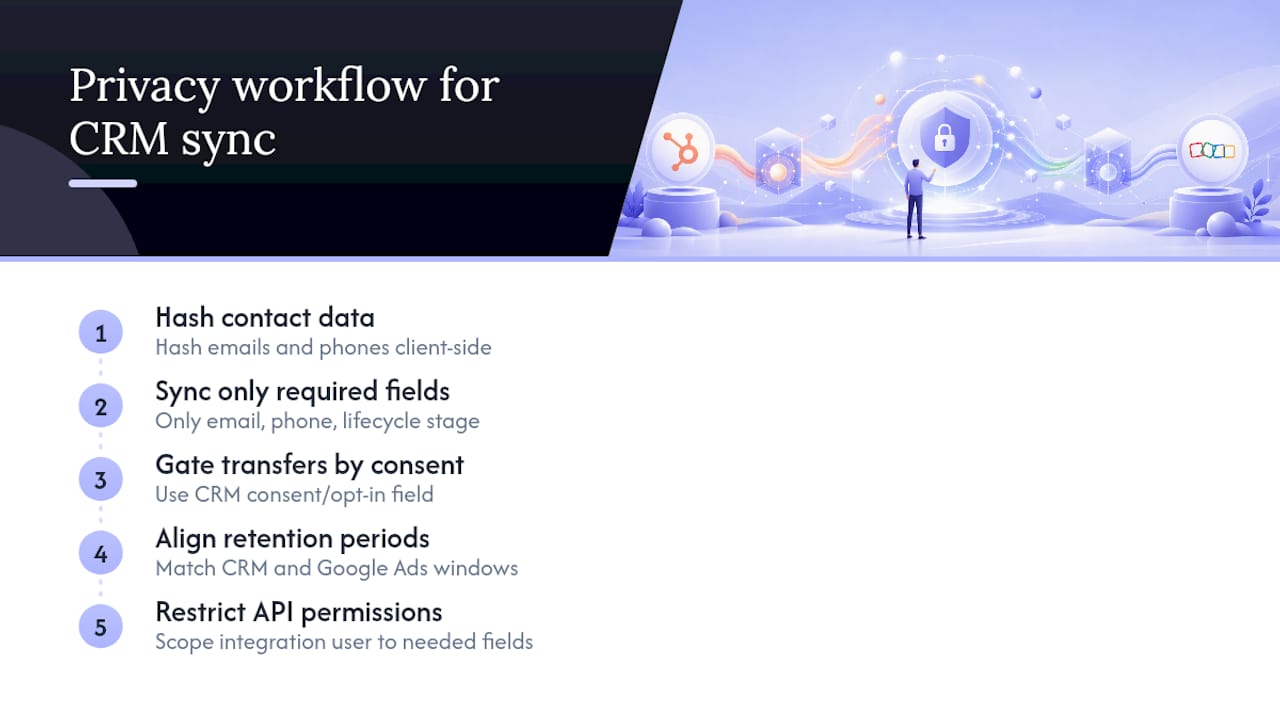
Any time you’re pushing contact data, whether hashed emails for enhanced conversions or raw fields for audience matching, into Google Ads, you’re handling personal information that carries real compliance obligations. A few practices keep this clean rather than risky.
Hash contact data before it leaves your CRM whenever the workflow supports it. Enhanced conversions are designed around this: emails and phone numbers get hashed client-side, so Google Ads never receives the raw value.
Only sync the fields you actually need for the conversion action or audience you’re building. A common mistake is mapping an entire contact record when the integration only needs email, phone, and lifecycle stage.
Document your lawful basis for sending marketing contact data to an ad platform, particularly if any of your leads are based somewhere with strict consent requirements. Your CRM’s consent or opt-in field should gate whether a contact syncs at all, not just whether they receive email marketing.
Review your CRM’s data retention settings against how long Google Ads retains conversion data. Mismatched retention windows are a common gap auditors flag.
Limit API user permissions to only what the integration needs. An integration user with full CRM admin access is a bigger risk than one scoped narrowly to the fields the connection actually touches.
How do you measure campaign performance using CRM data?
Google Ads reporting alone tells you cost per click and cost per conversion. It can’t tell you which of those conversions turned into actual revenue, which is exactly the gap CRM data closes.
Once offline conversions are flowing back into Google Ads, pull a report that layers CRM outcome data (deal value, sales cycle length, close rate) against campaign and keyword performance. This usually surfaces something the click-based metrics hide: a campaign with a mediocre cost per lead but an unusually high close rate often outperforms a cheaper campaign that generates leads that never convert.
Track a few numbers consistently rather than a dashboard full of vanity metrics:
- Cost per qualified lead, by campaign and by keyword theme
- Lead-to-close rate, segmented by which campaign originated the lead
- Average deal value by traffic source, if your CRM captures it
- Time from lead to close, which flags whether a campaign is attracting rushed, low-quality inquiries
Review this monthly at minimum. Sales cycles longer than a few weeks mean early data is noisy, and judging a campaign on lead volume alone before close data comes in is how budgets get misallocated toward campaigns that look cheap but produce nothing.
Can you automate bidding and targeting from CRM data?
Once CRM signals are flowing into Google Ads reliably, the next step is letting that data influence bidding and targeting automatically, rather than just reporting on it after the fact.
Value-based bidding strategies use the conversion values you send from the CRM to prioritize traffic that looks like your highest-value past customers. If a $10,000 deal and a $500 deal both count as one generic “conversion,” Google’s bidding has no way to tell them apart. Sending actual deal values changes that.
Customer Match audiences built from CRM segments let you exclude existing customers from new-customer campaigns, or build lookalike targeting based on your closed-won contact list rather than guessing at demographics. This is one of the more underused parts of the integration: most teams set up conversion tracking and stop there, without ever building the audience side.
Automating this well takes restraint as much as setup. Feeding Google Ads a “Qualified Lead” signal that’s actually low quality, because your sales team hasn’t tightened qualification criteria, will train the algorithm to chase the wrong leads at scale. Get the CRM stage definitions right before automating bids around them, not after.
What are real-world examples of CRM to Google Ads integration?
A local service business running lead-gen campaigns is the clearest case. Without a CRM connection, Google Ads only knows a form was submitted, not whether that lead ever booked a job. Once offline conversions flow back from the CRM, bidding shifts toward the keywords and audiences that produced booked jobs, not just filled-out forms.
B2B companies with longer sales cycles benefit differently. A software company generating demo requests might wait 45 days between lead and closed deal. Feeding Google Ads an early “Qualified Lead” signal keeps the bidding algorithm supplied with volume, while the eventual “Closed Won” data validates whether those qualified leads were worth the spend months later.
Multi-location businesses use CRM data to separate performance by location or franchise, something Google Ads campaign structure alone often can’t do cleanly. Syncing CRM stage data by location reveals which locations are converting leads into paying customers and which are generating form fills that go nowhere.
The through-line in all three cases: without CRM data, Google Ads optimizes toward the wrong metric, form fills or clicks rather than qualified leads or closed revenue. That’s the actual business benefit, not the integration itself.
What security steps protect the CRM to Google Ads connection?
An API connection between your CRM and Google Ads is a live channel for contact data, and it’s worth treating the access controls with the same care you’d give any other system holding customer information.
Scope API permissions narrowly. The integration user should have access to exactly the fields and objects the connection needs, not full CRM administrator rights. If Data Manager only needs to read lifecycle stage and write GCLID, that’s the access it should get.
Rotate API keys and re-authorize connections periodically, particularly after any staff change involving whoever originally set up the integration. Orphaned credentials tied to a former employee’s account are a common, avoidable gap.
Review connected apps in both platforms every so often. It’s easy to forget an old Zapier connection or a test integration that was never fully decommissioned, and each one is a potential access point nobody’s monitoring.
Confirm that hashed fields for enhanced conversions are actually hashed before they leave your system, not sent in plain text and hashed downstream. The whole point of the enhanced conversions approach is that raw contact data never has to travel over the connection at all.
What the checklists miss
Most guides to this topic treat CRM to Google Ads integration as a one-time technical task: connect the systems, map the fields, done. That framing undersells the actual work, which is deciding what signal you send back and defending that decision when the sales team disagrees with marketing about what counts as “qualified.”
The conventional advice leans hard on GCLID capture as the goal, and it’s worth getting right, but enhanced conversions deserve more attention than they usually get. Any funnel with a multi-step form, a redirect, or a checkout flow you don’t fully control will drop GCLIDs no matter how carefully you build the capture logic. Hashed contact data sidesteps that fragility entirely, and I’d argue it should be the default starting point for lead-gen businesses, not the fallback you reach for after GCLID capture breaks.
The bigger gap, though, is that teams build the pipeline and never revisit the conversion mapping. Sales processes change. Lifecycle stages get renamed. Nobody updates the Google Ads conversion action to match, and six months later the bidding algorithm is optimizing toward a stage that no longer means what it used to. Build the connection, then put a quarterly review on the calendar. That’s the step almost everyone skips.
— Shayan Shirvani
Get your CRM and Google Ads connected without the trial and error
Some providers build this exact connection for small businesses that would rather skip the weeks of troubleshooting missing GCLIDs and misconfigured API permissions, and streamline creation with an AI-assisted ad creative generation tool that complements CRM-driven audience work. Where a DIY setup often means guessing at field mappings and discovering a broken conversion action three weeks in, these providers can set up your Google Ads account, CRM integration, and conversion tracking correctly the first time, with the auto-tagging, GCLID capture, and lifecycle mapping already tested before you launch a single campaign.
A typical engagement starts with a short audit of your current CRM and Google Ads setup, followed by a pilot connection on one lead source to prove the data flows correctly, then a full rollout with automation and dashboard reporting layered on top. You get a clear quote before any work starts, no surprise scope creep halfway through. If you’re ready to stop guessing whether your CRM data is actually reaching Google Ads, check out Tech Business Development’s services and request a consultation to get a plan built around your specific CRM and campaign setup.
Where to check the official documentation
Google’s own Data Manager support pages cover the current setup flow for CRM connections and offline conversion imports, and they change often enough to be worth bookmarking. HubSpot and Zoho each maintain their own connector-specific help articles covering field mapping and known limitations. Before you build anything, confirm current requirements directly with Google and your CRM’s support docs. Integration platforms deprecate legacy connections without much warning, as Salesforce users learned when legacy support ended in May 2025.
FAQ
Is $500 a month enough for Google Ads?
It can work for a tightly targeted local campaign, but $500 a month leaves very little room for the bidding algorithm to gather conversion data, which is exactly why CRM-based signals like qualified leads matter more at smaller budgets. Smaller budgets benefit disproportionately from clean CRM integration because every conversion needs to count.
Does Google have a CRM tool?
Google doesn’t offer a standalone CRM product for sales teams. Instead, Google Ads Data Manager acts as the connection layer that lets external CRMs like HubSpot, Zoho, and Salesforce feed conversion and audience data into Google Ads.
How do I connect HubSpot to Google Ads?
Connect an individual Google Ads account (not a manager account) through HubSpot’s Google Ads integration, authorize the connection, and map your tracking template to avoid link shorteners that strip the GCLID parameter.
How do I connect Salesforce to Google Ads?
Legacy Salesforce integrations stopped working after May 31, 2025, so you now connect through Google Ads Data Manager, which requires API access and field history tracking enabled on your Lead and Opportunity objects.
Should I use a native connector or build a custom API integration?
Use the native connector if you mainly need audience syncing and basic offline conversions; move to a custom API or ETL pipeline only if you need keyword-level revenue attribution or you’re feeding a data warehouse.