Call tracking setup: a practical guide for marketers


Getting call tracking live comes down to four steps: provision tracking numbers, install dynamic number insertion (DNI) or enable Google forwarding, route calls to your destination number, and connect the platform to Google Ads, GA4, or your CRM. You can complete the Google forwarding route in under 30 minutes. A full third-party DNI setup with CRM integration typically takes two to four hours.
The fastest path to live tracking:
- Google Ads forwarding only: Create a conversion action in Google Ads, enable call reporting, and a Google forwarding number is automatically assigned to your ad. No snippet required. Done in under 30 minutes.
- Third-party DNI (full website attribution): Sign up for a platform like CallRail, provision a number pool, paste the JavaScript snippet into your site header or Google Tag Manager (GTM), configure routing to your destination number, and connect to Google Ads and GA4. Plan for two to four hours.
- Verify it works: Place a test call from a mobile device, wait 60 seconds, and confirm the call appears in your platform dashboard with a source attribution. If it shows up, you are live.
Phone leads are often invisible to campaign-level measurement without call tracking. Integrating call data into ad platforms and your CRM is what turns a ringing phone into a measurable conversion you can act on.
Table of Contents
- Which call-tracking approach should you use?
- How to provision tracking numbers and set up routing
- How to install dynamic number insertion on your website
- How to connect call tracking to Google Ads, GA4, and your CRM
- How to test calls and verify attribution
- Privacy, consent, and Canadian legal considerations
- How to use call-tracking data to improve marketing
- Key takeaways
- What actually matters in a call tracking implementation
- Tech Business Development sets up call tracking for small businesses
- Useful sources for implementation and deeper reading
Which call-tracking approach should you use?
The two main approaches serve different goals. Choosing the wrong one wastes setup time and leaves attribution gaps.

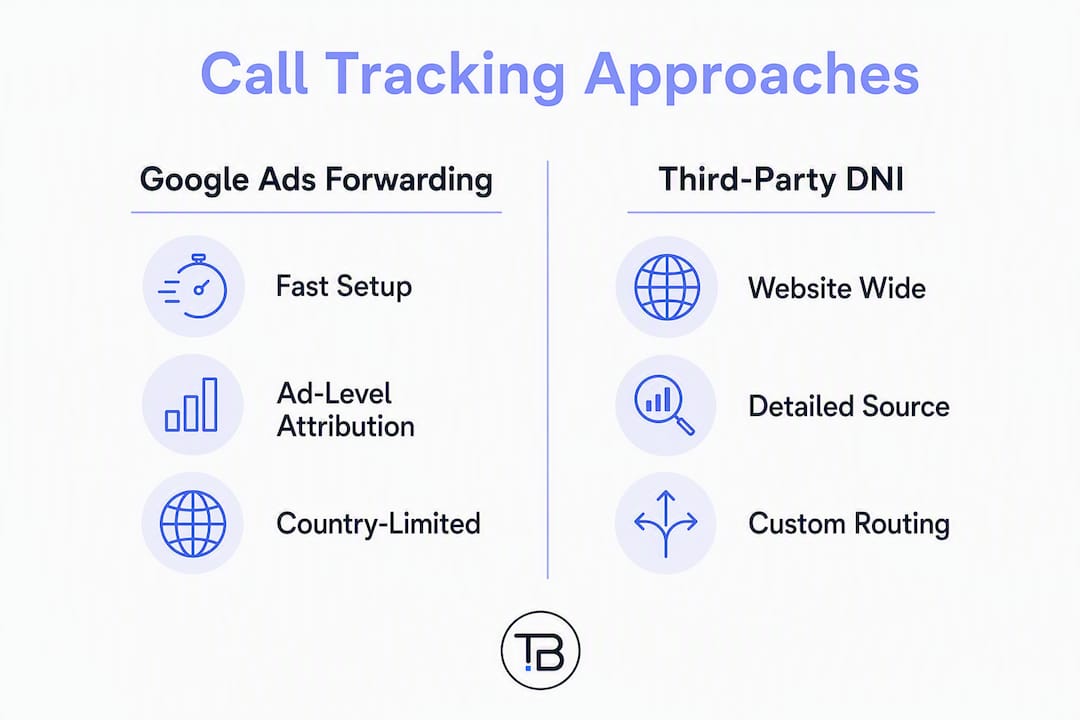
Google Ads forwarding assigns a Google forwarding number directly to your ad. When someone calls, Google records the call duration, start time, and whether the call connected. You set a minimum duration threshold, and calls that meet it count as conversions. Setup is fast, it costs nothing beyond your ad spend, and it feeds directly into Google Ads bidding. The limitation is scope: it only tracks calls that come from Google Ads clicks. Organic, social, and offline channels are invisible.
Third-party DNI covers the whole website. A JavaScript snippet detects each visitor’s traffic source (UTM parameters, gclid, referrer) and swaps the phone number displayed on the page to a unique tracking number from a pool. That number routes to your real destination number, and the platform logs the call against the original source. CallRail is the most widely used platform for this in North America, and it supports keyword-level attribution for PPC, session-level attribution for organic, CRM integrations, call recording, and transcription.
| Factor | Google Ads forwarding | Third-party DNI (e.g., CallRail) |
|---|---|---|
| Setup time | Fast for Google forwarding | Several hours for third-party DNI |
| Cost | Included with Google Ads | Monthly platform fee |
| Attribution scope | Google Ads only | All channels (paid, organic, social, direct) |
| Keyword-level attribution | Yes (via gclid) | Yes |
| CRM integration | Limited | Native connectors or webhooks |
| Call recording | No | Yes |
| Canadian number availability | Yes | Yes |
Use Google forwarding if you only run Google Ads and need a fast start with no extra cost. Use third-party DNI if you run multiple channels, need keyword-level attribution across organic and paid, want call recording, or need calls to flow into a CRM.
A few practical decision points:
- Do you need to track calls from SEO, social, or offline ads? You need DNI.
- Do you have a developer or GTM access? DNI installation is straightforward either way.
- Do you need call recordings for quality assurance or sales coaching? DNI only.
- Are you running Google Ads exclusively on a tight budget? Google forwarding is the right starting point.
Note that Google forwarding number availability varies by country. In Canada, Google forwarding numbers are available for Google Ads campaigns, but confirm availability in your Google Ads account under the call reporting settings before committing to that route.
How to provision tracking numbers and set up routing
Choosing number types for Canadian campaigns
Local numbers with Canadian area codes outperform toll-free numbers for local service businesses. A plumber in Calgary gets better call-through rates with a 403 number than an 800 number because it signals local presence. Toll-free numbers (1-800, 1-888) work well for national campaigns or businesses that want to project a larger footprint. Vanity numbers (1-800-PLUMBER) are useful for offline advertising like radio or print, where memorability matters more than attribution granularity.
For DNI pools, use local numbers matching the area codes of your target markets. If you run campaigns in Toronto, Vancouver, and Calgary simultaneously, provision separate pools with 416/647, 604/778, and 403 numbers respectively.
Pool sizing
Pool exhaustion is the most common cause of DNI attribution failures. Size your pool for peak concurrent visitors, not average visitors.
| Daily unique visitors | Recommended pool size | Notes |
|---|---|---|
| Under 500 | 8–20 numbers | Start with a small pool, monitor utilisation |
| 500–2,000 | 20–60 numbers | Add buffer for campaign spikes |
| 2,000–4,000 | 60–120 numbers | Segment by channel if possible |
| 4,000+ | 120+ numbers | Consult platform sizing guidance |
Vendor pool-sizing guidance recommends monitoring utilisation and expanding your pool when utilisation regularly exceeds roughly 80%. A safety buffer of 20–25% above your typical peak is a reasonable starting point.
Routing checklist
- Destination number: Set the correct business number or call centre line as the forwarding destination for every tracking number.
- Business hours routing: Route calls to a live agent during business hours and to voicemail or an after-hours message outside them.
- Overflow: If the primary line is busy, route to a secondary number or voicemail rather than dropping the call.
- Round-robin: For teams with multiple agents, distribute calls evenly to prevent one agent from being overwhelmed.
- IVR basics: Keep IVR menus short (two to three options maximum) for inbound lead calls. Long menus kill conversion rates.
- Capacity caps: Set a maximum queue length so callers are not left on hold indefinitely.
How to install dynamic number insertion on your website
The DNI snippet must load on every page of your site. A single page without it will show your real number, breaking attribution for any visitor who lands there. Add it to your site-wide header or footer, or deploy it through GTM as a custom HTML tag set to fire on all pages.

How DNI detects traffic source
When a visitor arrives, the script reads UTM parameters, the gclid (Google Click ID), and the HTTP referrer. It assigns a number from your pool to that session and writes a first-party cookie so the same number stays visible as the visitor moves through your site. The cookie preserves attribution across pages within the session timeout window. Session timeout configuration affects both pool requirements and attribution accuracy, so check your platform’s default (typically 30 minutes) and adjust it to match your typical browsing session length.
Single-page apps (React, Next.js, Vue)
Standard DNI scripts fire on page load. Single-page apps (SPAs) do not reload the page on navigation, so the script may not re-fire when a visitor moves between views. Fix this with one of two approaches:
- Hook into the framework’s router events (e.g.,
router.afterEachin Vue,useEffecton route change in Next.js) and call the DNI script’s re-initialisation function. - Use a MutationObserver to watch for DOM changes and trigger a number swap check when the phone number element re-renders.
Check your platform’s SPA documentation. CallRail, for example, provides a re-initialisation method you can call manually on client-side navigation.
Common pitfalls and fixes
- Numbers as images: The DNI script cannot swap a phone number that is embedded in an image. Replace image-based numbers with HTML text, or use a
data-attribute as a swap target. - CSS-generated numbers: Numbers rendered via CSS
content:property are not swappable. Move them to HTML. - Cached pages: Server-side or CDN caching can serve a page with a hardcoded number before the script fires. Use cache-busting headers or ensure the script loads client-side after the cached HTML.
- tel: href not updated: The DNI script swaps the visible number but may not update the
tel:href attribute. Confirm your platform updates both, or add the number element to the script’s target selectors. - Number format mismatch: CallRail’s DNI script recognises formats like
111-222-3333,111.222.3333, and(111) 222-3333. Numbers formatted differently (spaces, no separators) may not be swapped. Standardise your number format across the site.
Pro Tip: After installing the snippet, open your site in an incognito window with UTM parameters appended to the URL (e.g., ?utm_source=google&utm_medium=cpc) and confirm the displayed number changes from your default. Do the same with no UTM parameters to confirm the fallback number shows correctly.
How to connect call tracking to Google Ads, GA4, and your CRM
Google Ads integration
Google Ads offers two paths for website call conversion tracking: native forwarding (Google assigns the number) and importing conversions from a third-party platform.
- In Google Ads, go to Goals > Conversions > New conversion action and select Phone calls.
- Choose Calls to a phone number on your website for the forwarding route, or Import for a third-party platform.
- Set your minimum call duration. A common starting threshold is 60 seconds for service businesses, though 30 seconds works for high-intent categories like emergency services. Google’s call reporting records calls over 15 seconds for duration data, but only calls meeting your conversion threshold count toward bidding.
- Install the Google tag and phone snippet on your site, or deploy both through GTM.
- For third-party platforms, export call conversion data and import it via the Google Ads conversion import feature, or use an automated connector.
GA4 integration
GA4 does not natively receive call events. You push them in one of two ways:
- Platform-to-GA4 connector: CallRail and similar platforms can send call events directly to GA4 via a native integration. Map call dimensions (source, medium, campaign, keyword) to GA4 event parameters.
- Measurement Protocol: For custom setups, use GA4’s Measurement Protocol to POST call events server-side, including session ID, client ID, and UTM data captured at the time of the call.
Build a GA4 conversion event from the call event (e.g., phone_call_qualified) and use it in your reports and audiences.
CRM integration
Connecting calls to your CRM is where call tracking pays off most clearly. When a sales rep picks up, they should already see the caller’s name, the campaign that drove the call, and the keyword if it was a PPC call.
- Use your platform’s native CRM connector (CallRail supports HubSpot, Salesforce, and others) or a webhook.
- Push call metadata to the CRM on call completion: caller number, call duration, recording URL, UTM parameters, gclid, and campaign name.
- Match the caller to an existing contact record by phone number, or create a new lead record automatically.
- Attach the call to the relevant deal or pipeline stage.
For practical CRM automation examples that show how to trigger tasks and notifications when a tracked call arrives, the patterns apply directly to call-tracking workflows.
Conversion settings checklist
- Set minimum call duration based on your sales cycle (30–120 seconds is a typical range).
- Filter out calls shorter than your threshold from conversion counts.
- Exclude known spam or internal numbers from reporting.
- Enable call recording only after confirming consent compliance (see the privacy section below).
- Test that conversion events appear in Google Ads within 24 hours of a test call.
How to test calls and verify attribution
A working call tracking setup should pass every item on this checklist before you consider it live.
Step-by-step verification:
- Open an incognito browser window and visit your site via a simulated Google Ads click (append
?gclid=test123or use a real ad preview). - Confirm the DNI number displayed is different from your default number.
- Call the displayed number from a mobile device. Stay on the line for longer than your conversion threshold.
- Check your call tracking platform dashboard within five minutes. The call should appear with source attributed to Google/CPC.
- Check Google Ads conversions within 24 hours. The call should appear as a conversion.
- Check your CRM. A new lead record or activity should have been created automatically.
- Repeat the test with no UTM parameters (direct traffic) and confirm the fallback number displays and the call is logged as direct.
Troubleshooting the most common failures:
- No number swap: Script not loading on the page. Check GTM preview mode or browser console for errors.
- Wrong source attributed: UTM parameters stripped by a redirect. Check your redirect chain and preserve UTM parameters.
- Pool exhaustion: All tracking numbers in use simultaneously. Increase pool size.
- Calls not appearing in Google Ads: Conversion import delay (up to 24 hours is normal) or misconfigured conversion action. Verify the conversion action status in Google Ads.
- CRM records not created: Webhook URL incorrect or CRM field mapping missing. Test the webhook with a tool like Webhook.site.
- Cookie/session issues: Visitor clears cookies mid-session or uses a browser with aggressive ITP (Intelligent Tracking Prevention). Session attribution may break. This is expected behaviour; document it as a known limitation.
Pro Tip: Set up a weekly automated report in your call tracking platform that flags calls with no source attribution. A sudden spike in unattributed calls usually means the DNI snippet stopped loading on a specific page template after a site update.
Privacy, consent, and Canadian legal considerations
PIPEDA and caller data
Canada’s Personal Information Protection and Electronic Documents Act (PIPEDA) governs how private-sector organisations collect, use, and disclose personal information, including caller data. Under PIPEDA, you need a lawful purpose for collecting caller phone numbers and call recordings, and you must be transparent about that collection in your privacy policy.
Practical implications:
- Document why you are collecting caller data (e.g., quality assurance, lead attribution, sales follow-up).
- Update your privacy policy to disclose that calls may be tracked and recorded.
- Limit access to call recordings and transcriptions to staff with a legitimate need.
- Set a data retention period and delete recordings when they are no longer needed.
Call recording consent in Canada
Canada’s criminal code requires the consent of at least one party to a call for recording to be lawful. In practice, most businesses satisfy this by playing a disclosure message at the start of the call. A standard IVR disclosure sounds like: “This call may be recorded for quality assurance and training purposes.” That is sufficient for one-party consent in most Canadian jurisdictions.
Quebec’s Law 25 (formerly Bill 64) imposes stricter consent and transparency requirements than PIPEDA alone. If you serve Quebec residents, review your consent flows and privacy notices against Law 25 requirements.
Privacy checklist for marketers
- Add a call recording disclosure to your IVR or on-hold message.
- Update your website privacy policy to mention call tracking and recording.
- Restrict CRM access to call recordings by role.
- Set an automatic deletion schedule for recordings (90 days is a common starting point).
- Document your lawful purpose for data collection in writing.
- If using AI transcription, disclose this in your privacy policy.
How to use call-tracking data to improve marketing
Once calls are flowing into your platform, the data is only useful if you act on it. These are the KPIs and optimisation moves that produce real results.
Key KPIs to track:
- Qualified call rate: The percentage of calls that meet your duration threshold and result in a genuine lead conversation. This separates signal from noise.
- Cost per qualified call by channel: Divide ad spend by qualified calls per source. This is the number that tells you where to put more budget.
- Close rate by source: Connect call data to CRM outcomes to see which channels produce calls that actually convert to customers.
- Missed call rate: Calls that rang but were not answered. High missed call rates mean routing or staffing problems, not a marketing problem.
- Revenue per call: If your CRM tracks deal value, divide closed revenue by the number of calls from each source.
Optimisation actions:
- Reallocate budget away from sources with high call volume but low qualified call rates (often broad-match keywords or low-intent display placements).
- Review call transcriptions or recordings for the most common questions and objections, then update ad copy and landing pages to address them before the call.
- Pause keywords that generate calls shorter than 20 seconds consistently. These are almost always wrong-number or spam calls.
- Use call topics from transcriptions to identify service lines that generate more inbound interest than your current ad spend reflects.
Automation tip: Set up a CRM workflow that creates a follow-up task automatically when a call ends without a deal being created. Pair this with automated marketing analytics workflows to keep your reporting current without manual exports.
For scaling, add AI call scoring to separate high-value leads from misdials automatically. Google Ads call transcription is available for eligible accounts and can surface keyword themes from calls directly in your reporting.
Key takeaways
A working call tracking setup requires four things: the right approach for your channels, correctly sized number pools, a properly installed snippet or forwarding tag, and live integrations to Google Ads, GA4, and your CRM.
| Point | Details |
|---|---|
| Choose your approach first | Google forwarding suits ads-only setups; third-party DNI covers all channels and enables CRM integration. |
| Size your number pool correctly | Start with 8–20 numbers for under 500 daily visitors; expand when utilisation exceeds roughly 80%. |
| Install DNI on every page | A single page missing the snippet breaks attribution for visitors who land there; deploy via GTM for reliability. |
| Comply with Canadian privacy rules | Play a recording disclosure on your IVR, update your privacy policy, and review Quebec’s Law 25 if you serve that province. |
| Tech Business Development | Handles GTM, GA4, Google Ads, DNI installation, and CRM integration as a bundled setup for small businesses. |
What actually matters in a call tracking implementation
There is a gap between what call tracking promises and what most implementations actually deliver. The promise is full-funnel attribution: every phone lead traced back to the keyword, ad, and campaign that generated it. The reality, for most small businesses, is a partially connected system where calls show up in the platform but never make it into Google Ads bidding or CRM records.
The single biggest missed opportunity is the CRM connection. Most businesses get the DNI snippet live and stop there. They can see calls in the platform dashboard, but their sales team is still working blind. The moment you push call metadata into the CRM, the whole picture changes: reps know the campaign before they say hello, managers can see which channels produce closeable leads, and budget decisions stop being guesswork.
The second thing practitioners underestimate is pool sizing. It feels like a minor technical detail until you realise that an undersized pool means some visitors are seeing your real number, not a tracked one, and those calls are invisible to your attribution model. The fix takes five minutes once you catch it, but you will not catch it without monitoring utilisation in the first two weeks.
For local service businesses in Canada, the area code choice matters more than most guides acknowledge. A local number in the right area code is not just an attribution tool. It affects whether someone picks up the phone in the first place.
Small businesses with a single Google Ads campaign and no CRM can get full value from Google forwarding alone. The moment you add a second channel, a CRM, or a sales team that needs context on inbound calls, the economics of a third-party DNI platform pay for themselves quickly.
Tech Business Development sets up call tracking for small businesses
Most small businesses spend more time troubleshooting their call tracking setup than they do acting on the data. Tech Business Development handles the full implementation: GTM and GA4 configuration, Google Ads call conversion setup, DNI installation, number provisioning with Canadian area codes, CRM integration, and a verified test before handoff.

A typical small-business engagement covers discovery (understanding your channels and CRM), provisioning (numbers, routing, and platform configuration), implementation (snippet or tag deployment, Google Ads and GA4 connections), and a testing session to confirm attribution is working across every channel. You get a documented setup you can manage yourself, or Tech Business Development can handle ongoing monitoring as part of a monthly package.
If you want call tracking live and connected to your marketing stack without spending days on documentation and debugging, see what’s included in our services or visit techbusinessdevelopment.com to get started.
Useful sources for implementation and deeper reading
The following official documentation and vendor guides are the best references to consult while implementing call tracking. Prefer vendor docs when installing platform-specific snippets or tags, as code examples and field names change with platform updates.
- About phone call conversion tracking — Google Ads Help: Covers all five types of call conversions you can track in Google Ads, including calls from ads and calls from your website using forwarding numbers.
- About call reporting — Google Ads Help: Explains how Google forwarding numbers work, what call details are recorded, and how to count calls as conversions. Contains the authoritative duration and jurisdiction notes.
- Set up tracking calls to a phone number on a website — Google Ads Help: Step-by-step instructions for creating a website call conversion action and installing the Google tag and phone snippet, including the GTM path.
- Dynamic number insertion overview — CallRail Help Centre: The canonical reference for CallRail DNI installation, number format requirements, cookie behaviour, and target selector configuration.
- Dynamic number insertion guide: setup, sizing, and troubleshooting — Velocalls: Contains practical pool-sizing tables and utilisation guidance referenced in the provisioning section above.
Recommended